-medium.png)
Step 1:
Go to “https://app.donormozo.com/organization/signup” URL, fill all the mandatory fields like (add your org name, first name, last name etc.), review our terms & conditions and hit signup button.

Step 2:
Go to your mailbox and verify your account by clicking on the “verify your account “ button as shown in the image below.
(Note:- If you do not see email in your inbox, please check your spam folder as well.)

Step 3:
After verifying your account by email you will be redirected to the login page. Now you can log in using valid email and password, which you provided at the time signup.

Step 4:
After login, you will be redirected to the organization setup page, as shown in the image below. Now you can fill all the mandatory fields of the organization information page then click on the SAVE button.

Step 5:
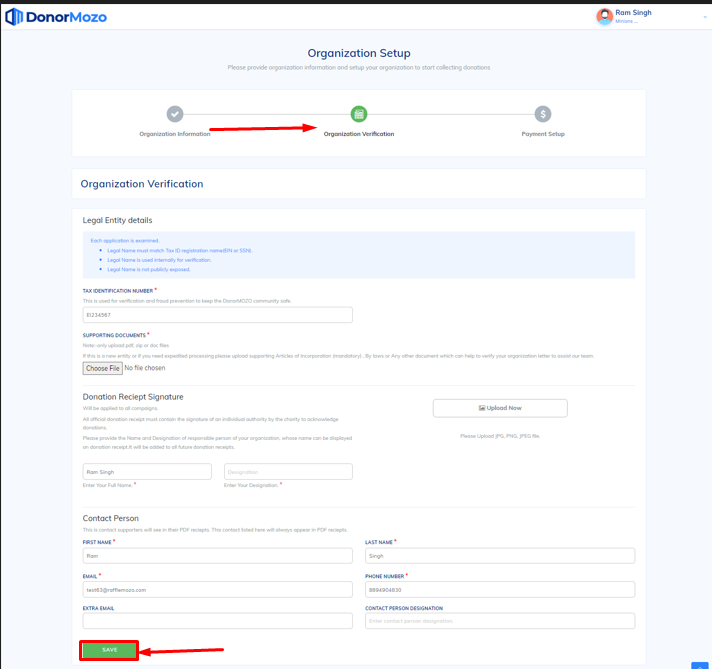
After saving you will be moved to the next page(organization verification) as shown in the image below. Now you can fill all the mandatory fields and then save by clicking on the save button.
Step 6:
After saving you will be moved on the last step(payment setup) page. At this page connect your stripe account by clicking on the add button as shown in the image below.

Step 7:
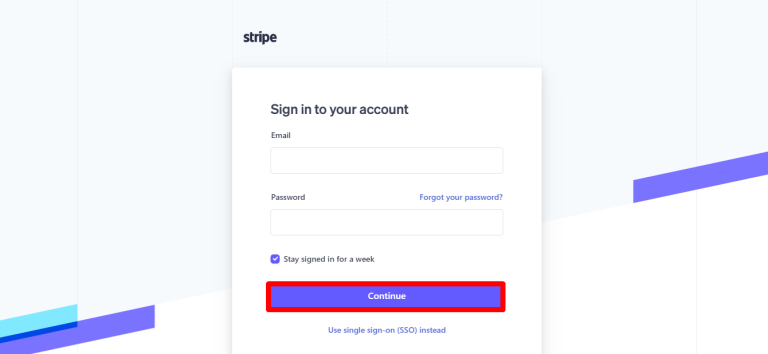
When you click on add button you will be redirected to the stripe login page.
Now you can login your stripe account and connect it donormozo.
Step 8:
After connecting the payment setup your organization will be in pending status until the admin approves your organization.

Step 9:
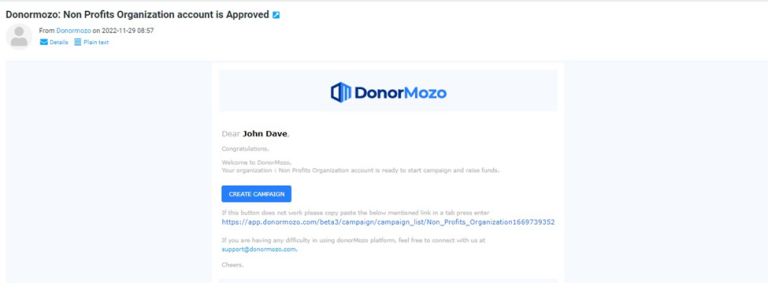
Once the admin approves your organization, you will recieve an email on your registered email.
Step 10:
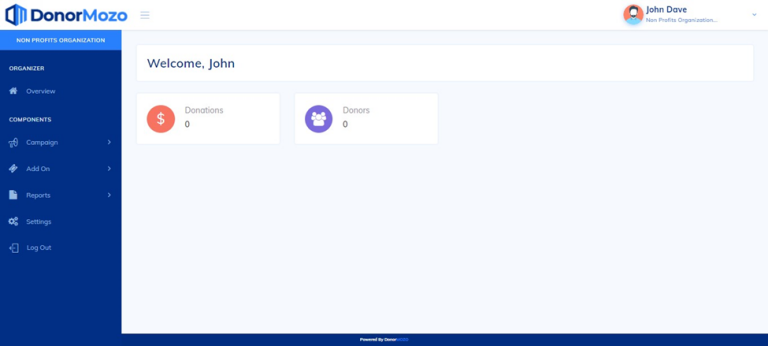
Now when you login you will be on dashboard. congratulations! your account setup is ready and you are ready to launch your first campaign.