Step 1:
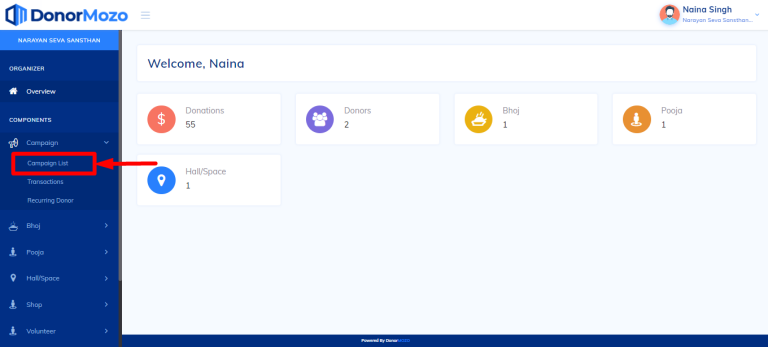
To create new campaign, login as organizer click on campaign arrow icon and click on "Campaign List" from left bar .
Step 2:
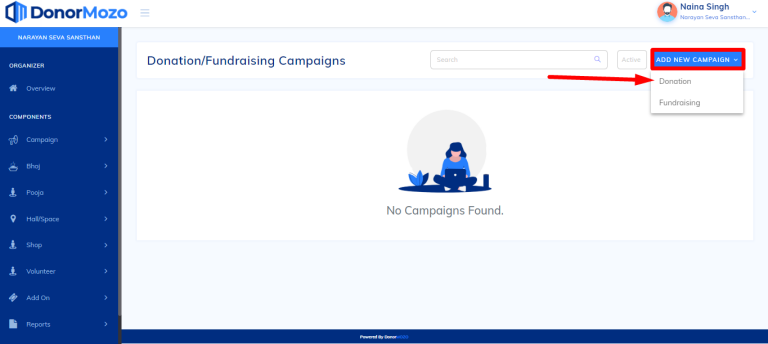
After clicking on the campaign list, click on the "Add new campaign" arrow icon and click on the "Donation" from drom down.
Note:- At this page you can select which type of campaign you have to create as per their need.
Step 3:
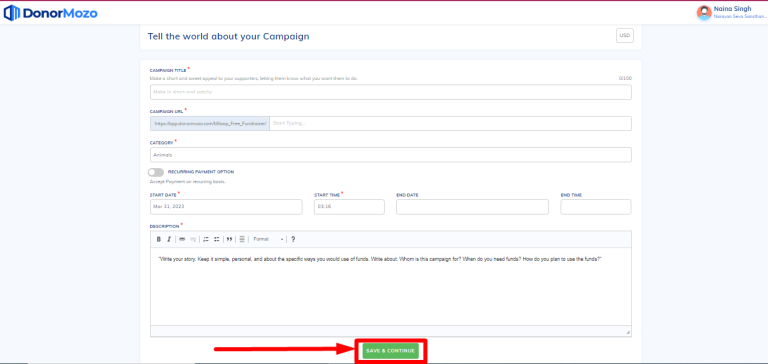
When you click on donation button, campaign form will be displayed. Now you can complete all the required information and click on the "Save & Continue" .
Step 4:
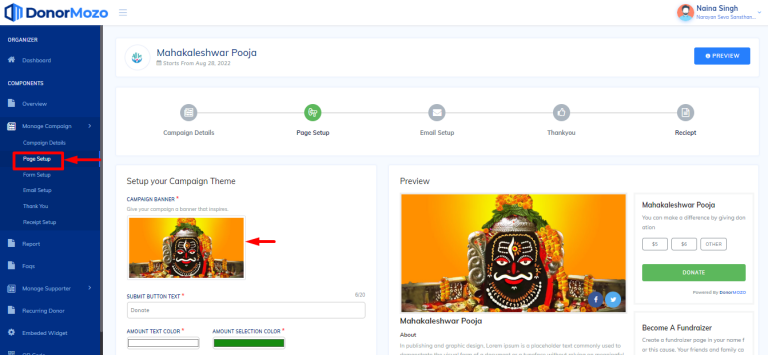
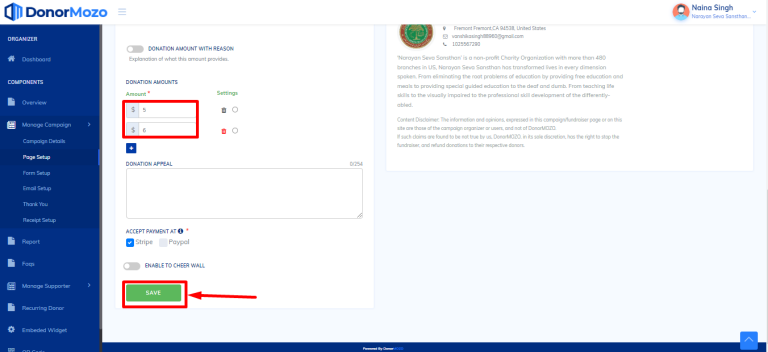
Once you complete campaign details page you will be redirected to the next step page setup. at this page add the campaign banner, amount and click on "save" .
Step 4(a) :
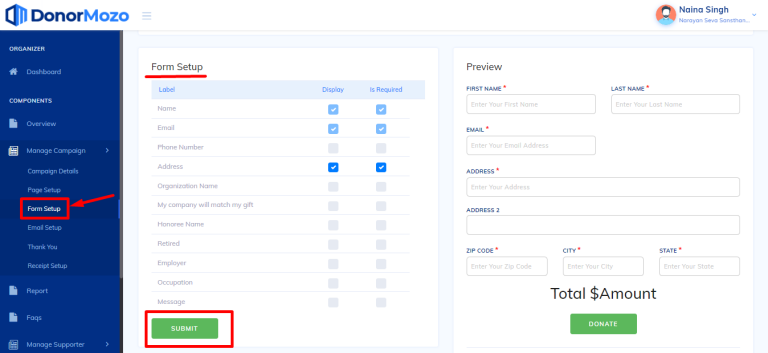
This is "Form setup". at this page you can customize the field as per their need and save it as shown in the image below.
Step 4(b) :
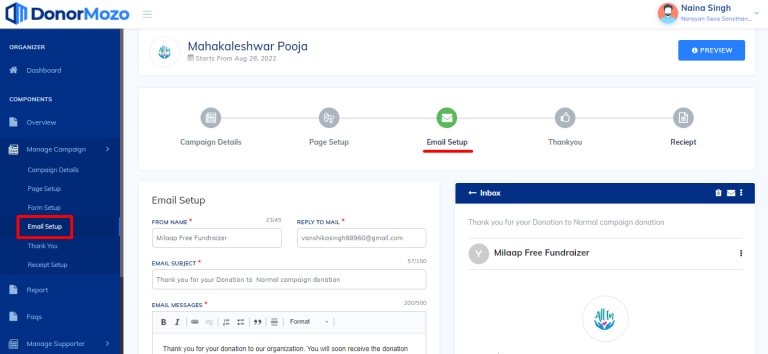
This is "Email Setup". at this page you can change email formate as well.
Step 4(c) :
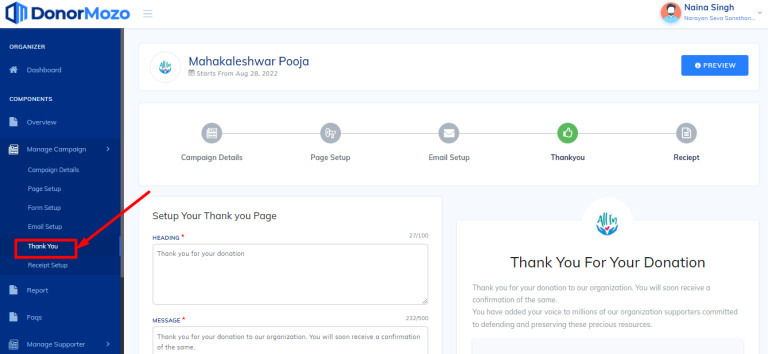
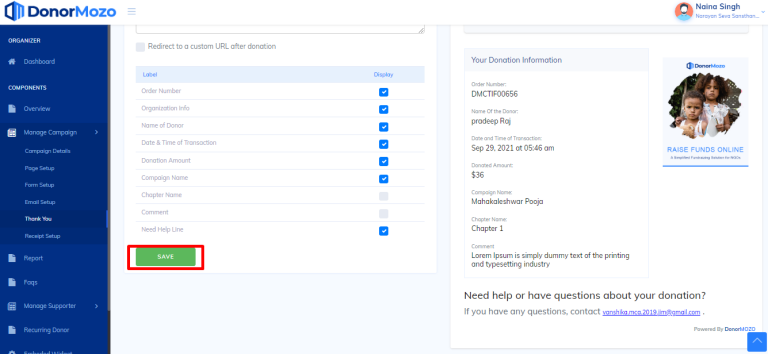
This is "Thank You" setup. by default it is set but you can update it.
Step 4(d) :
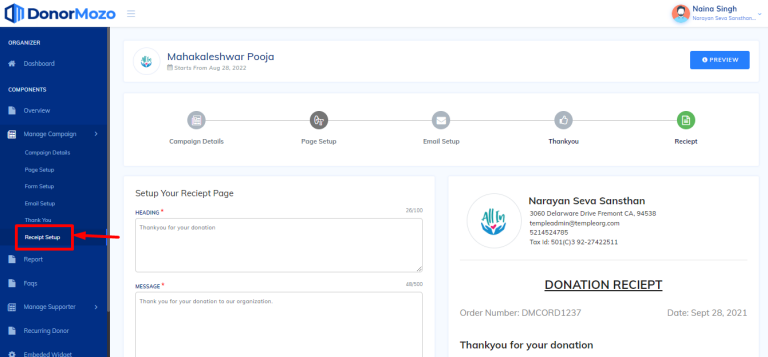
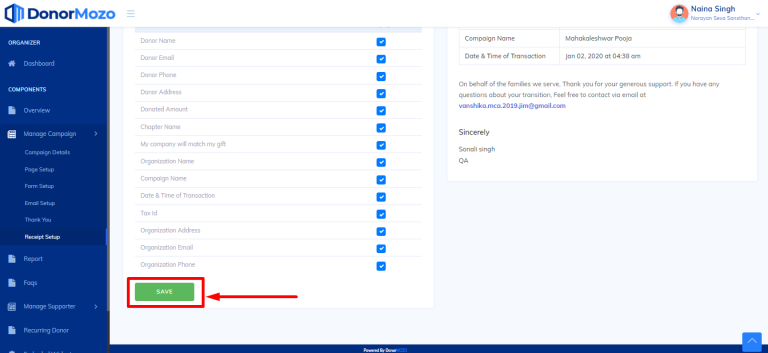
This is "Reciept setup" page. and you can update this page as per their need.
Step 5:
Once you complete all step your campaign will be created and will displayed in the campaign list.
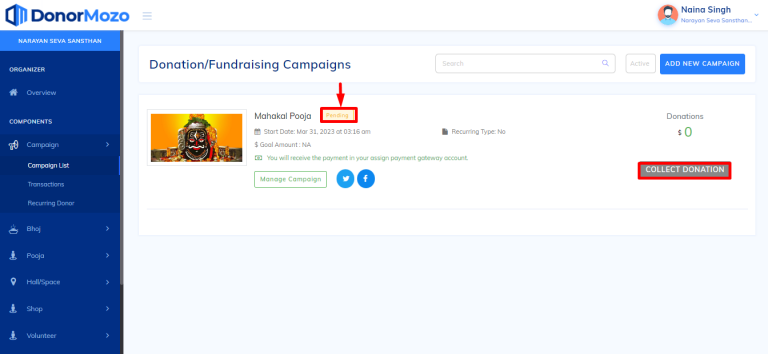
Note :- Your campaign will be in pending and can't take donation until the admin approves your campaign.
Step 6:
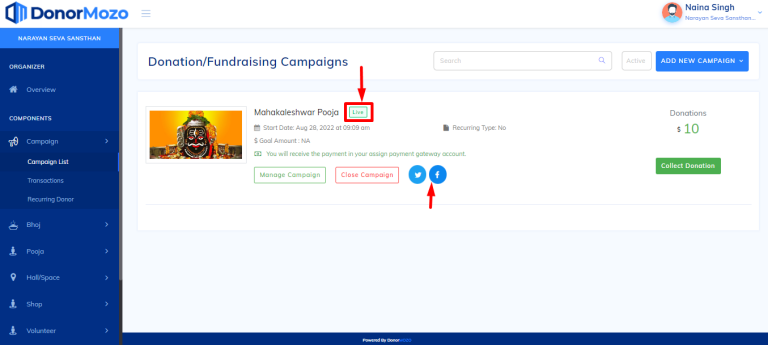
Once the admin approves your campaign, your campaign status will be updated to "Live" as you can see the image below.
Now you can share your campaign and take donation.